
You have found a backing track you like, but the key does not suit your voice. Perhaps a track arranged for a female singer needs to suit a male singer, or the other way around. Finding the same arrangement in another key can take time.
Many music programs and apps can change the key of a song. But adjusting one backing track should not require installing software and learning a new workflow.
SolAudioLab Audio Key Changer keeps the process simple. Open your audio file, adjust the key, listen, and save a new copy. You can start in your browser without installing anything or signing in.
Open your backing track
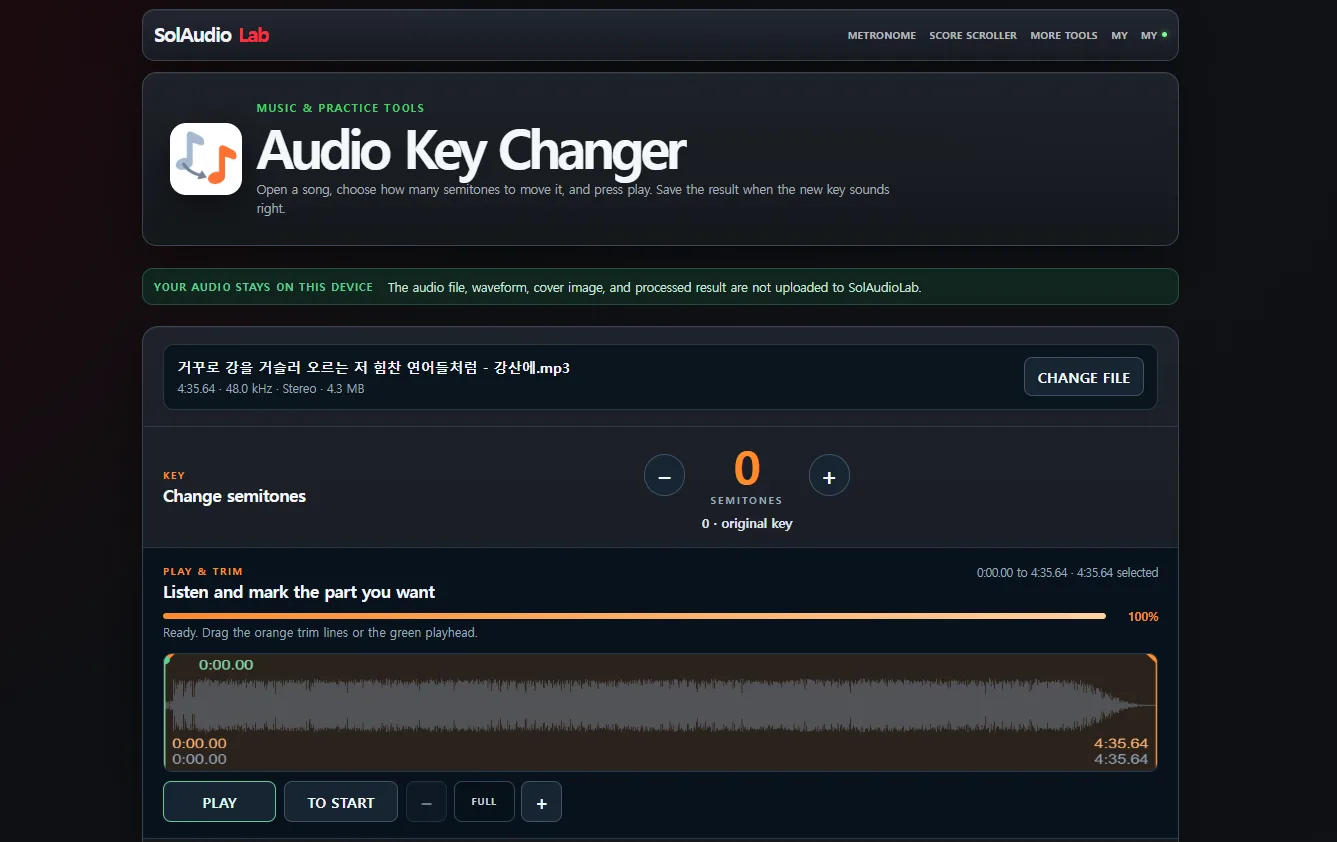
Select OPEN AUDIO FILE and choose your backing track. You can open an MP3 file, a WAV file, or a FLAC file. Other audio formats may also work if your browser can decode them.
Use the minus button to lower the pitch. Use the plus button to raise the pitch. Each button press changes the pitch by one semitone. The adjustment range is one octave down to one octave up.
A setting of −2 lowers the track by one whole tone (2 semitones). A setting of +2 raises the track by one whole tone (2 semitones). The tempo stays the same.
When processing finishes, select PLAY and sing along. Make small pitch adjustments until the song feels comfortable to sing.
Find the key that suits the singer
There is no fixed number of semitones for changing a backing track from a male vocal key to a female vocal key. The same applies in the other direction. The right adjustment depends on the song's range and the person singing it.
Try the highest notes in the chorus, then check the lowest notes in the verse. Lowering the key may make the high notes easier while making the low notes harder to sing. Sing in the octave that suits your voice as you compare.
Once a short section feels comfortable, sing through the whole song before settling on the key.
Keep the whole song or save a shorter section
You may want to practice only a chorus, a bridge, or another difficult passage.
Drag the orange start and end markers on the waveform to select that section. Zoom in if you need to place the boundaries more precisely.
When the key and section are ready, select SAVE FILE. Choose WAV, FLAC, or MP3 and download a new copy. Your original file stays unchanged.
Adjust the level of a quiet extracted backing track
Stem separation tools can remove vocals or extract selected instruments to create a practice track. Depending on the source and the separation tool, the extracted track may sound quieter than the original mix.
That is why Audio Key Changer also includes level options. You can adjust the key and prepare a usable listening level in the same save step.
- Current Level saves the edited audio without additional level adjustment or compression.
- Maximum Gain adjusts the level based on the audio peaks without compression. Try this first when an extracted backing track sounds too quiet.
- Loud applies compression before adjusting the final level. Compare this option when a few strong peaks limit how much you can raise the rest of the track.
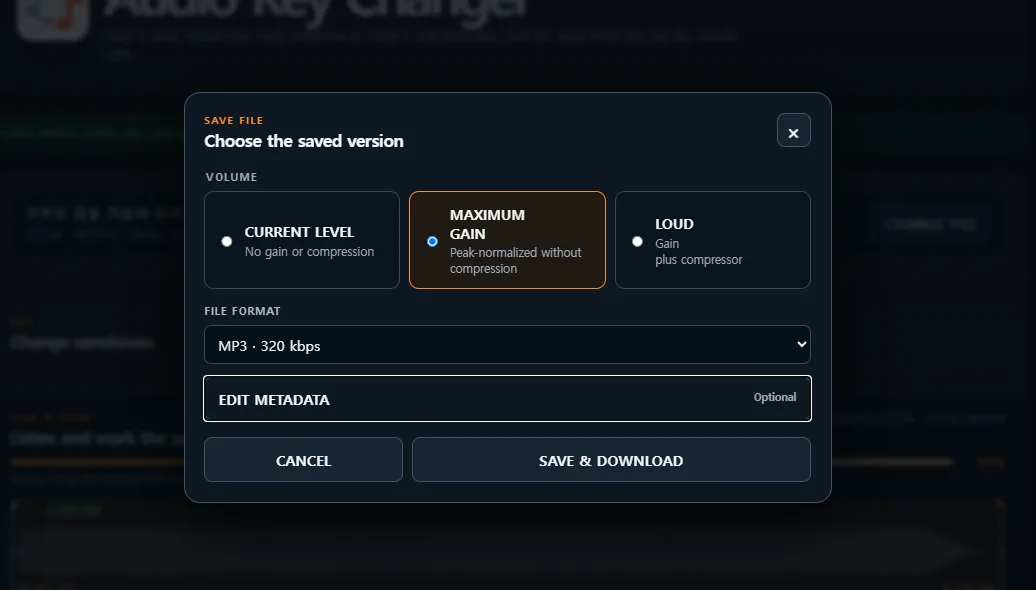
These options do not repair artifacts introduced during stem separation. Raising the level can also make those artifacts more noticeable, so listen to the saved result before choosing the version you will use.
Your audio stays on your device
The browser handles file decoding, key changes, trimming, and file creation. Your original audio and processed audio are not uploaded to SolAudioLab.
The core tool works without an account. If you want to reuse named settings, you can sign in with Google and save them to My SolAudioLab. Saved presets contain settings such as the key adjustment and trim points. They do not contain the audio file itself. To use a preset on another device, you will also need to open the audio file on that device.
Preparing a backing track can be straightforward. Open the file, find a comfortable key, choose the section and level you need, and save a new copy for practice or your next rehearsal.