Musicians often need to remove a hand from their instrument to turn a page during a rehearsal or live performance. Score Scroller reduces that interruption. It opens PDF and image sheet music and moves the score automatically as the song progresses.
You can begin with a simple song-length setting. You can also detect measure lines and set the meter and BPM when you need more accurate movement. Score Scroller includes annotation tools and a MARK system for repeated sections, skipped sections, and other changes in performance order.
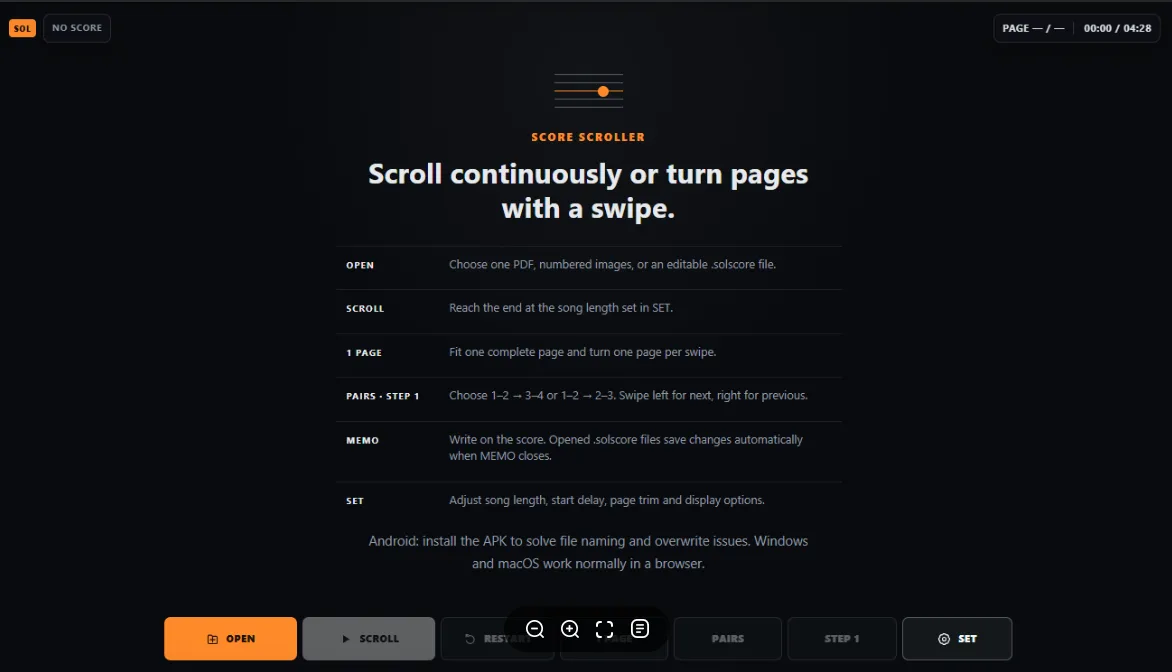
What Score Scroller can do
- It opens PDF sheet music and multiple image files.
- It scrolls the complete score during the song length that you set.
- It can show and turn one page or two pages at a time.
- It lets you write on the score with a pen or highlighter.
- It detects measure lines and lets you correct the result.
- It can move the score according to the meter and BPM.
- It uses MARK pairs to follow repeats and other changes in performance order.
- It saves the source score, annotations, measure lines, MARK positions, and playback settings in one editable
.solscorefile.
Score Scroller processes the selected score on your device. You do not need to sign in with Google to use the tool.
1. Open PDF or image sheet music
Select OPEN at the bottom of the screen. Then choose the score files on your device.
You can open one PDF file. You can also open JPG, JPEG, PNG, WebP, GIF, BMP, or AVIF images. Select all pages together when your score consists of several images. Page numbers in the filenames make the order easier to confirm.
You can use photographed or scanned paper scores. A photographed score can contain perspective distortion or uneven lighting. These problems can reduce the accuracy of automatic measure detection. You can correct the result later in MEASURE SET.

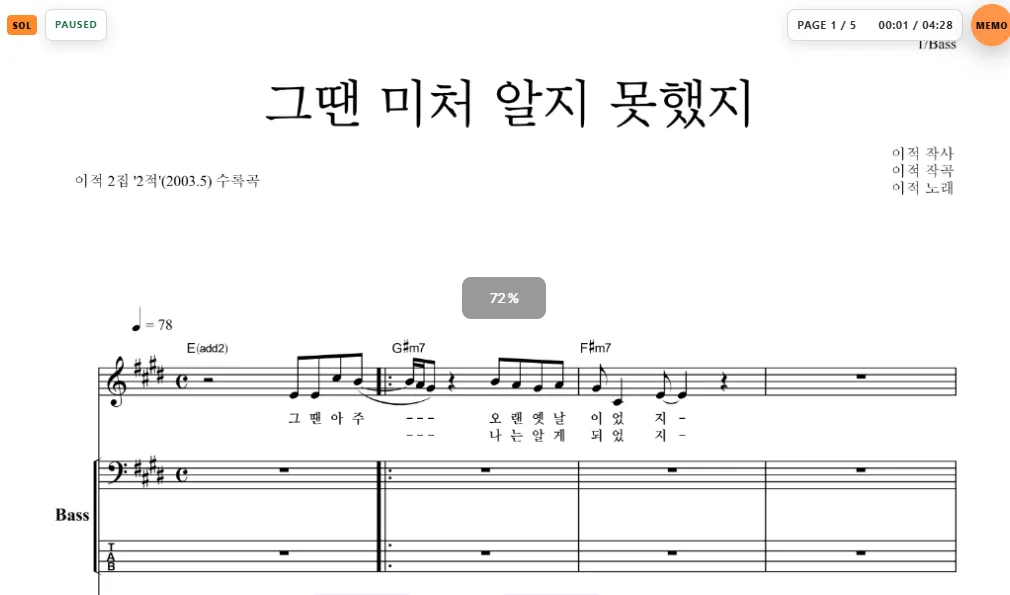
2. Choose a score view
Score Scroller provides four ways to display the score.
SCROLL
This mode joins all pages into one continuous score. Use it when you want automatic movement based on song length or BPM.
1 PAGE
This mode fits one complete page on the screen. Swipe left to move forward. Swipe right to move back.
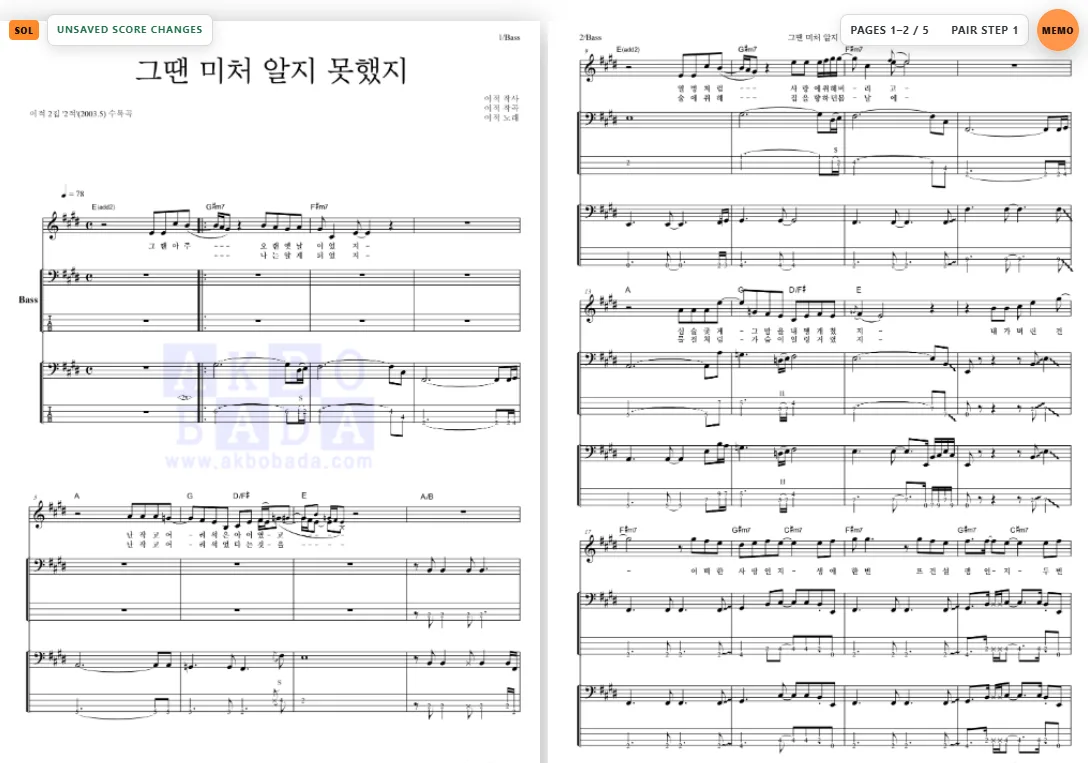
PAIRS
This mode shows pages 1 and 2 together. It then shows pages 3 and 4 together. It is useful on a wide display that can show two pages clearly.
STEP 1
This mode shows pages 1 and 2, then pages 2 and 3, and then pages 3 and 4. It keeps the previous page visible while you move one page at a time.
3. Scroll through a song by its total length
The simplest setup uses the total song length.
- Open the score.
- Select SET.
- Enter the total time under SONG LENGTH.
- Choose START DELAY if you need preparation time.
- Close the settings panel and select SCROLL.
Score Scroller calculates a continuous speed that reaches the end of the score at the time you entered. This method is useful when the printed score follows the performance order without repeats or skipped sections.
The default START DELAY is 0 seconds in song-length mode. You can choose 3, 5, or 10 seconds. Select RESTART when you want to return to the beginning and start again with the current delay.
The default PAGE TRIM value is 0. Higher values remove more empty space between eligible page edges.

4. Write directly on the score
Select MEMO in the upper-right corner. The annotation toolbar appears at the bottom of the screen.
- PEN writes with a red pen.
- HIGHLIGHT adds a fluorescent green highlight.
- MARK creates positions for changes in performance order. This control becomes available after you set measure lines and BPM.
- ERASE removes pen and highlight strokes.
- UNDO reverses the most recent annotation action.
- CLEAR PAGE removes the annotations from the current page.
- SAVE saves the score and its editable data in a
.solscorefile.
The pen and highlighter preserve the black notes and lyrics. The printed score remains readable under the annotation color.

5. Save an editable .solscore file
The .solscore format keeps everything that Score Scroller needs to reopen and edit the score.
It can contain the following data:
- The original PDF or image pages
- Pen and highlight annotations
- MARK positions
- Corrected measure lines
- Song length and start delay
- Meter and BPM settings
- Page-view settings
The .solscore file remains usable even if the original PDF or images are later removed. The file can become large because it contains the original score pages.
When you edit an existing .solscore file, Score Scroller writes back to the same file if the browser grants direct file access. A browser without that access downloads an updated copy instead.
6. Detect measures and scroll at the BPM
Prepare the measure lines before you use BPM playback.
- Open the score and select SET.
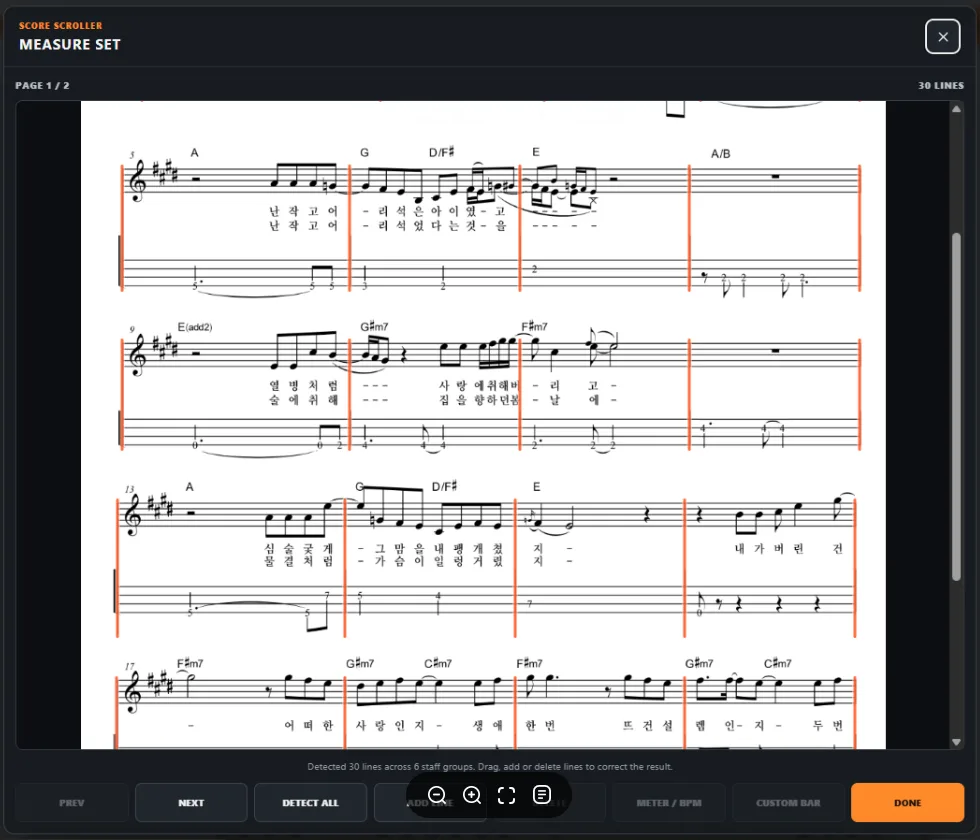
- Select MEASURE SET.
- Score Scroller analyzes the staves and measure lines.
- Move an incorrect line horizontally or adjust its height.
- Use ADD LINE when a measure line is missing.
- Use DETECT ALL when you want to analyze every page again.
Check the first and last boundary of every staff system after detection. A connected standard staff and TAB staff can be corrected as one system.
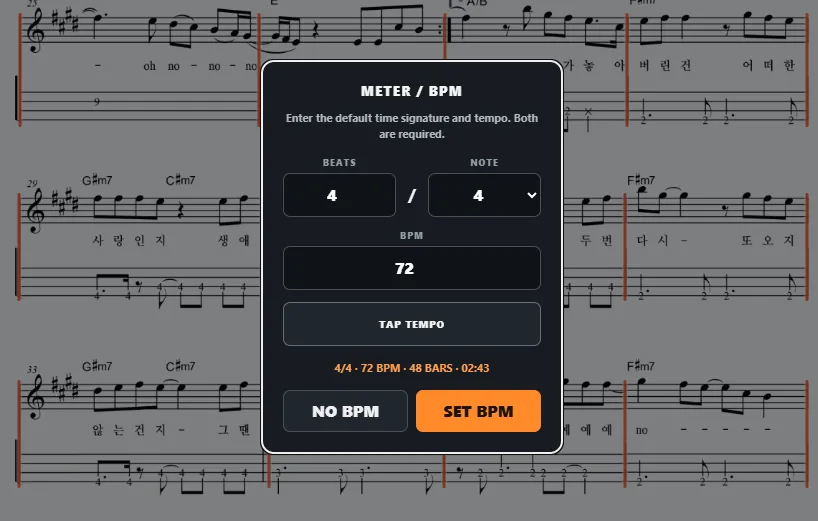
Select METER / BPM after the measure map is complete. Enter the default time signature and BPM. Then select SET BPM. You can enter the BPM directly or use TAP TEMPO to estimate it from your taps.
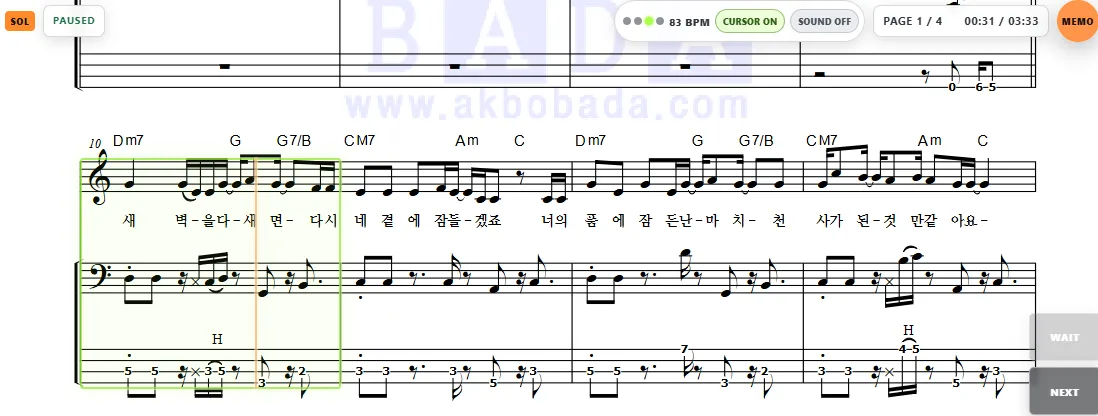
In BPM mode, Score Scroller calculates the duration of every measure. It keeps the current measure near the center of the screen. A pale green outline shows the active measure. You can also enable a cursor that moves across the measure on each beat.
7. Set a different beat count for one measure
A song can use 4/4 as its default meter and contain one 2/4 measure. Use CUSTOM BAR for that measure.
- Set the default meter and BPM for the song.
- Select CUSTOM BAR.
- Select the left measure line of the measure that has a different beat count.
- Confirm that the red overlay covers the intended measure.
- Enter the beat count and select APPLY.
Enter 2 when the default meter is 4/4 and the selected measure is 2/4. The custom measure continues to use the default denominator and BPM.

8. Use MARK pairs for repeats and skipped sections
MARK pairs define changes in performance order. They become available after you set the measure map and BPM.
- The score scrolls normally until MARK 1.
- It moves from MARK 1 to MARK 2 at the transition point.
- It then scrolls normally until MARK 3.
- It moves from MARK 3 to MARK 4.
- You can create more pairs in the same way.
The visible number shows the position that you placed on the page. Score Scroller links the saved MARK to the nearest detected measure line. This link lets playback continue from the correct musical position after the move. You can drag an existing MARK number to correct its position without rebuilding the other MARKs.

9. Correct live timing with WAIT, NEXT, and BACK
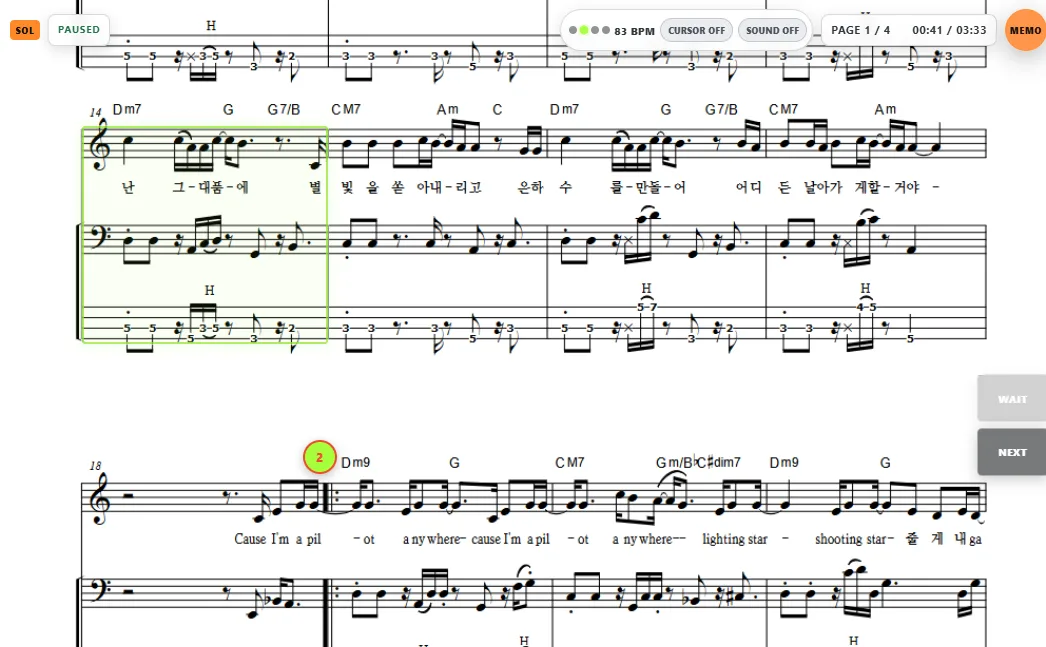
Performance timing can differ from the BPM that you prepared. Score Scroller shows live controls on the right side when a score contains MARK pairs.
WAIT
WAIT becomes available when the next odd MARK is visible. It stops both scrolling and musical time. The score waits at the current position until you select NEXT.
NEXT
Select NEXT while waiting. Score Scroller moves to the paired even MARK and resumes from that exact route position.
BACK
BACK becomes available after the score arrives at an even MARK. Select it to return to the preceding odd MARK and wait. Select NEXT again when you want to repeat the same transition.
10. Use the metronome and opening count-in
A compact metronome appears at the top of the screen in BPM mode. The first beat is red. The remaining beats use a different color. The current light stays on until the next beat begins.
Use SOUND ON or SOUND OFF to control the metronome sound. Use CURSOR ON or CURSOR OFF to control the moving beat cursor.
In BPM mode, START DELAY uses measures instead of seconds. You can choose 0, 1, or 2 measures. The metronome continues through the count-in. Score Scroller places the score at the first routed measure before the count-in begins, so playback starts without a sudden position change.
File saving on each platform
Score Scroller is a browser tool that does not require installation. File access still depends on the operating system and browser.
Windows and macOS
You can use Score Scroller normally in a browser. Chrome or Edge provides the most consistent file-opening and file-saving experience. A browser that does not grant direct overwrite access can download a new copy when you save an edited score.
Android tablets and foldable devices
You can use Score Scroller in an Android browser. The browser can add a number to the filename on every save. It can also make direct overwrite and destination selection difficult. Install the Android APK when you want to choose the filename and location or update an existing .solscore file more easily.
iPad
You can use the main features in a browser on iPad. Safari can download a new copy instead of overwriting the existing file. Repeated editing can therefore create several copies. An installable iPad version is not available yet.
Why the Android APK is useful
The Score Scroller APK connects the tool to the Android document picker. It provides the following improvements:
- Choose the filename and save location.
- Save changes to the open
.solscorefile. - Create a new file with SAVE AS.
- Open
.solscorefiles from an Android file manager. - Launch Score Scroller from its own application icon.
The APK is currently a beta build. SolAudioLab distributes it directly from the Score Scroller page instead of Google Play. Open SET and select DOWNLOAD APK.

When Android shows an installation-source warning
Android checks the source when you install an APK from outside Google Play. This is a normal Android step for externally distributed APK files.
- Open the settings page from the installation message.
- Choose the browser or file manager that downloaded the APK.
- Allow installation from that source.
- Return to the previous screen and install the APK.
- You can disable that permission again after installation.
Download the APK only from the official Score Scroller page. Do not install a copy from another website or an unverified shared link.
The Android APK loads the current Score Scroller interface from the SolAudioLab server. Most interface and playback updates appear without another APK installation. You only need a new APK when the Android file-handling bridge itself changes.
Start with three simple steps
You do not need to configure every advanced feature before your first use.
- Select OPEN and choose your score.
- Select SET and enter the song length.
- Select SCROLL and begin the performance.
Add MEASURE SET and METER / BPM when you need measure-accurate movement. Add MARK pairs and the live controls when the performance contains repeats or skipped sections.