You can now turn a completed SolAudioLab Audio Analyzer result into an unlisted, read-only report and share it with a single link. The original audio file is not uploaded or stored. The report contains the measurements, reduced graph data, the selected analysis purpose, and the suggestions that were generated during analysis.
This is useful when a screenshot is too limited but sending the source audio is unnecessary or inappropriate. A collaborator can open one page, see the same technical context you saw, and then launch Audio Analyzer to check another file of their own.
What the shared report does
Audio Analyzer already measures loudness, peaks, dynamics, stereo balance, waveform shape, and changes over time. The shared report keeps those results together on one stable page.
The report can include:
- Analysis date
- Analysis engine version
- Selected Analysis Purpose
- Integrated Loudness
- Sample Peak
- Estimated True Peak
- Average Level
- Level Difference
- Peak Events
- Stereo Balance
- Waveform Overview
- Loudness Over Time
- Overall Result
- Friendly Suggestions
The result is read-only. A recipient cannot change your measurements, replace the file, or publish the report in a public directory. The current first version uses Unlisted visibility, so the report is available only to people who have the link.
How to create an unlisted report link
The process starts after a normal analysis:
- Open SolAudioLab Audio Analyzer.
- Choose a supported audio file.
- Select the Analysis Purpose that matches the intended use, such as Music Streaming, Podcast / Voice, or YouTube / Online Video.
- Wait for the analysis to finish.
- Find Share these analysis results below the main result cards.
- Add an optional track title and decide whether the original file name should appear.
- Select Create Report Link.
The title is optional, but a clear title helps when the recipient is reviewing several mixes. The file name is hidden by default. Leave it hidden when the file name contains a client name, project code, revision note, or anything else you do not want to expose.
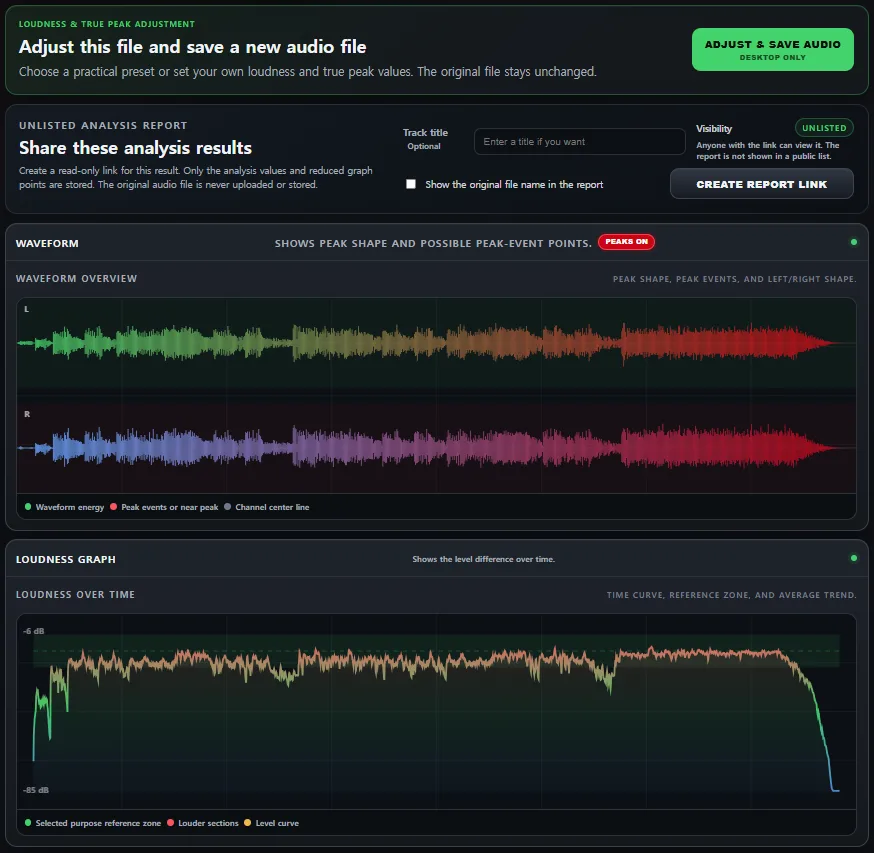
The report controls appear after analysis. Add an optional title, keep the file name hidden when needed, and create the unlisted link.
After the report is created, Audio Analyzer gives you two different links. The read-only report link is the one you share. The separate management link contains the ownership key used to delete the report, so keep that link private.
What the recipient sees
The report opens without the original audio and without an audio player. At the top, it clearly identifies itself as an Unlisted · Read Only report. It also explains that the page contains analysis values and reduced graph data only.
The first section provides the context needed to understand the result: analysis date, engine version, selected purpose, duration, sample rate, and channel count. This matters because the same loudness number can mean different things depending on whether the file is a finished song, spoken content, a rehearsal recording, or a short social video.
Below that, the Quick Summary groups the major readings in one view. A recipient can immediately compare Integrated Loudness, Sample Peak, Estimated True Peak, Average Level, Level Difference, Peak Events, and Stereo Balance without asking for a second screenshot or a list of copied values.
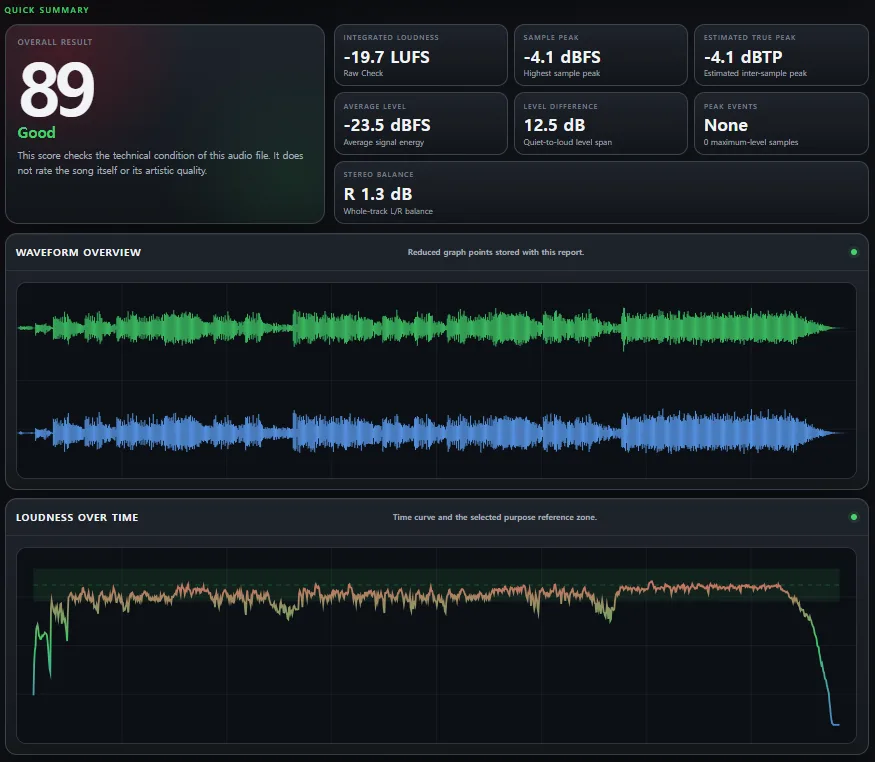
The read-only report keeps the main measurements and waveform overview together without including audio playback.
The waveform and loudness graphs are also included as reduced data. They are not a copy of the original audio. Their purpose is to preserve the visual context of the analysis: where energy changes, whether loud sections repeat, and how the signal behaves over time.
The original audio stays in your browser
The privacy boundary is simple: Audio Analyzer decodes and analyzes the source file locally in your browser. Creating a report does not send the original WAV, FLAC, MP3, M4A, AAC, or OGG file to SolAudioLab.
Only the analysis values and a reduced set of graph points are stored for the report. The shared page cannot play the source, download it, or reconstruct the original recording from those graph points.
This makes the report suitable for cases where the numbers and visual overview are useful but the audio itself should continue to move through your normal delivery system. It is still important to treat the report link appropriately: Unlisted means it is not placed in a public report list, not that it is protected by a password. Anyone who receives the read-only link can open it.
Read-only link and management link are different
The two-link design separates viewing from ownership.
The read-only report link is intended for collaborators, clients, students, or band members. It shows the report but does not provide editing controls.
The management link includes the private ownership key required to delete the report. Anyone who has that management link may be able to delete the report, so it should not be pasted into a group chat, public document, blog post, or ordinary review message.
If a report is no longer needed, open the management link and use Delete Report. This removes the stored report data. Deleting the report does not affect the original audio because that file was never stored with the report.
How to read the report without chasing one number
Start with the selected Analysis Purpose. It tells you which practical context was used when the suggestions were generated. Then look at the readings as a group.
Integrated Loudness describes the average perceived loudness over the analyzed program. Sample Peak shows the highest digital sample. Estimated True Peak looks for possible peaks between stored samples and is especially useful when a file will be encoded or uploaded. Average Level and Level Difference add information about overall energy and movement. Peak Events show whether maximum-level samples appear as isolated events, repeated events, or a more serious pattern. Stereo Balance shows whether the whole track leans noticeably to one side.
The Overall Result is deliberately described as a technical-condition score. It is not a rating of the song, performance, mix taste, production style, or artistic quality. A high score does not prove that a mix sounds exciting, and a caution result does not mean that the music is bad. It only helps direct attention to measurements that may deserve another listen.
The Waveform Overview and Loudness Over Time sections make the measurements easier to connect with the structure of the file. Friendly Suggestions then translate the selected readings into practical next checks. They may point out useful peak headroom, a loudness mismatch for the selected purpose, a wide level difference, or a stereo balance that deserves attention.
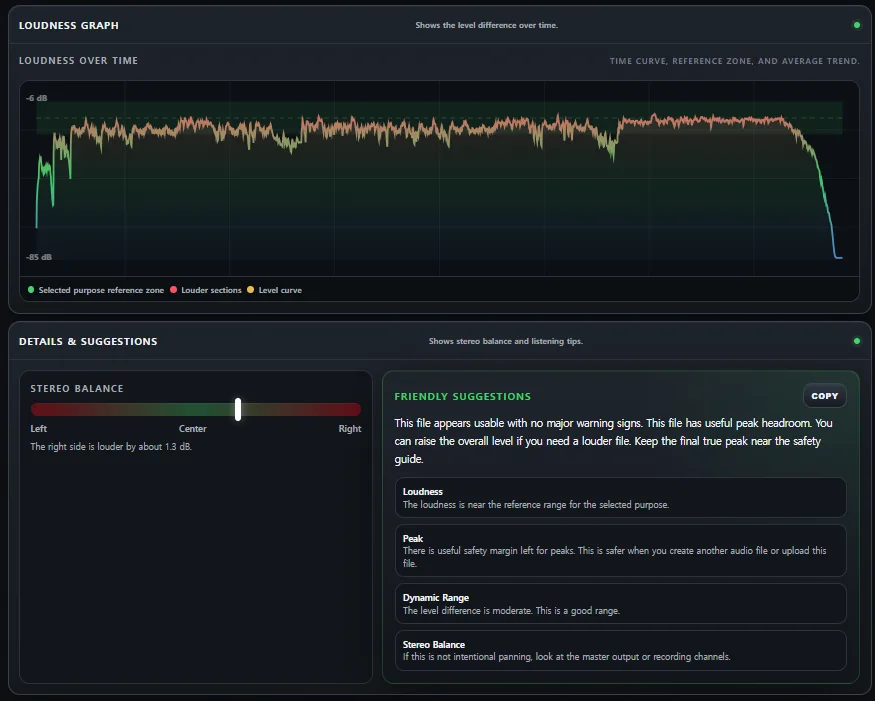
Reduced graph data and purpose-based suggestions preserve useful review context for the recipient.
The suggestions are a starting point, not an automatic mastering decision. Listen to the file, compare it with an appropriate reference, and consider the intended delivery format before changing level, dynamics, or limiting.
When a shared analysis report is useful
A producer can send a mix engineer one link that preserves the measured context. A mastering engineer can show why a version needs another peak-safety check without sending a collection of screenshots. A podcast editor can share loudness and balance information with a host. A teacher can discuss the same report with a student. A band can compare a rehearsal recording before the next session.
It is also useful for asynchronous review. The recipient does not need your browser session or the original file to understand which purpose was selected and what the tool reported. If they have another version of the audio, the report includes a direct path back to Audio Analyzer so they can run their own local analysis.
What this first version does not try to be
The report is intentionally small and focused. It does not host or stream the source audio. There is no public gallery, login profile, comment thread, rating system, or permanent project dashboard. It also does not create an automatic Mix V1 versus Mix V2 comparison.
Those limits keep the first workflow clear: analyze locally, create an unlisted report, share the read-only link, and keep the management link private.
Try it with your own file
Open Audio Analyzer, choose the purpose that matches your destination, and analyze the file locally. When the result is ready, add an optional title, create the report link, and send only the read-only link to the person who needs it.
The report gives both sides the same measurements, graphs, and suggestions while the original audio stays where it began: on your device.