
# How to Use VST3 Plugins in foobar2000: Virtual Headphones Setup
foobar2000 is a fast and flexible music player, but it does not load VST3 plug-ins by itself. With the official VST 2.x/3.x Adapter component, you can add SolAudioLab Virtual Headphones to the playback DSP chain and use it while listening to your music library.
This setup lets you:
- Apply a measured correction profile for the headphones you are wearing.
- Listen with the FLAT reference target.
- Compare the tonal balance of another supported headphone.
- Check your music through selected consumer listening targets.
This guide is for 64-bit foobar2000 on Windows. The required foobar2000 VST adapter is Windows-only. Mac users can run Virtual Headphones in a compatible VST3 or Audio Unit host, or use the web version.
Downloads
Download these three items before you begin:
- foobar2000 for Windows — Choose the current 64-bit version.
- VST 2.x/3.x Adapter for foobar2000 — Download the official foobar2000 component.
- Virtual Headphones for Windows VST3 — Download the SolAudioLab Windows VST3 package directly.
How foobar2000 loads Virtual Headphones
The signal path is simple: foobar2000 plays the music, the VST adapter sends the playback signal through Virtual Headphones, and the processed signal continues to your selected output device.
Virtual Headphones works as a real-time listening DSP in this setup. You can keep your music library and familiar foobar2000 playback controls while adding another headphone reference to your listening session.
Step 1: Install the VST adapter in foobar2000
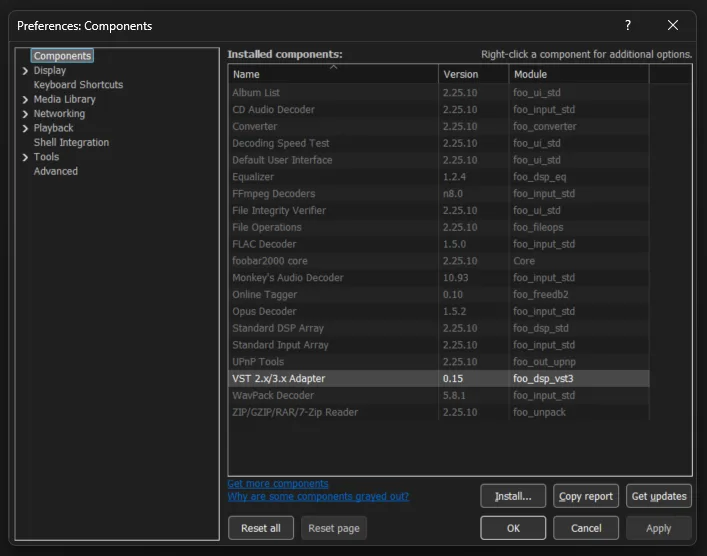
Download foo_dsp_vst3.fb2k-component from the official component page. Do not extract this file.
- Open foobar2000.
- Go to File > Preferences.
- Select Components.
- Click Install and choose
foo_dsp_vst3.fb2k-component. - Click Apply or OK.
- Restart foobar2000 if requested.
Open Preferences > Components again. The installed component list should now include VST 2.x/3.x Adapter.
Step 2: Install Virtual Headphones VST3
Close foobar2000 before copying the plug-in. Extract the downloaded Virtual Headphones ZIP, then copy the complete SolAudioLab folder to the standard Windows VST3 folder:
C:\Program Files\Common Files\VST3\
The final location should be:
C:\Program Files\Common Files\VST3\SolAudioLab\Virtual Headphones.vst3
Windows may request administrator permission when you copy files into Program Files. If you need a per-user installation, you can use this standard location instead:
%LOCALAPPDATA%\Programs\Common\VST3\
Keep the complete Virtual Headphones.vst3 folder structure intact.
Step 3: Add Virtual Headphones to the DSP Manager
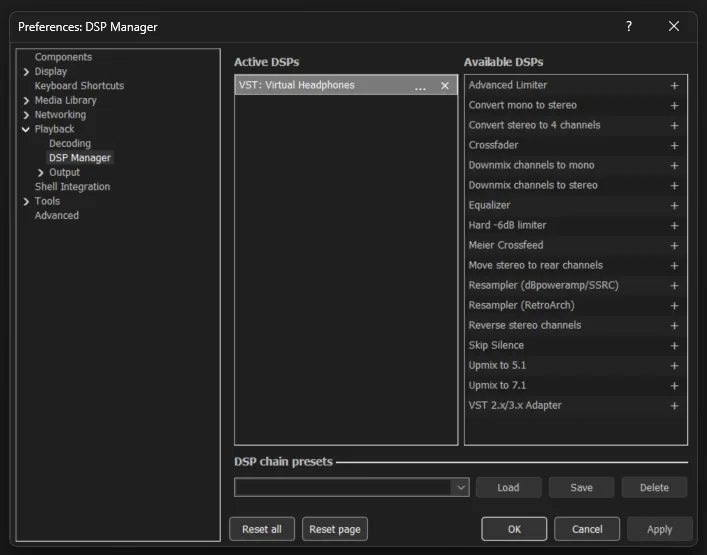
Restart foobar2000 and open File > Preferences > Playback > DSP Manager.
Find VST 2.x/3.x Adapter under Available DSPs, then click the plus button. In the VST Effect Configuration window, select Virtual Headphones (VST v3, 64-bit).
If the plug-in is not listed immediately, click Folders and confirm that its VST3 location is enabled. A standard system installation should be found under:
C:\Program Files\Common Files\VST3

After selection, VST : Virtual Headphones should appear under Active DSPs. If you already use other playback DSPs, place Virtual Headphones at the end of the chain so it acts as your final monitoring reference.
Step 4: Open Virtual Headphones during playback
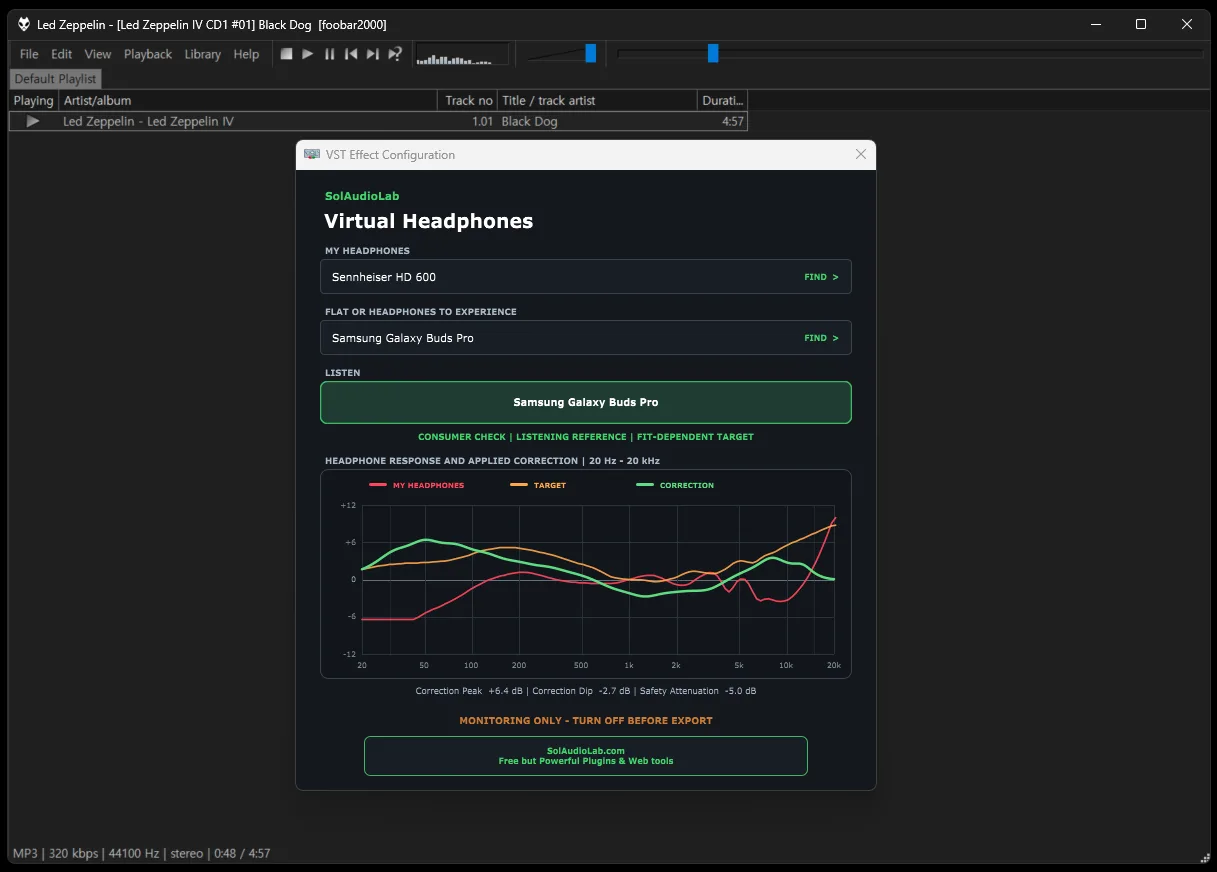
Play a track that you know well. Open View > DSP > Virtual Headphones to show the plug-in window. You can return to it from this menu without reopening Preferences.

Set up the comparison in this order:
- Under MY HEADPHONES, click FIND and select the exact model you are wearing.
- Under FLAT OR HEADPHONES TO EXPERIENCE, click FIND.
- Choose FLAT, another headphone, or an available consumer listening target.
- Use the large LISTEN button to switch between your headphones and the selected target.
Why use Virtual Headphones in foobar2000?
Many foobar2000 users already have carefully organized libraries, preferred output settings, ReplayGain preferences, and familiar test tracks. This setup adds headphone comparison without requiring a separate music player or a DAW session.
It is useful when you want to hear whether a bass balance, vocal level, or bright upper range remains convincing through a different tonal reference. It can also provide a quick second perspective when another physical headphone is not available.
FLAT or another headphone?
Choose FLAT when you want to hear your current headphones corrected toward a neutral frequency-response reference.
Choose another headphone when you want to compare tonal direction. Listen for changes in bass weight, vocal presence, and treble balance. Consumer Check targets can help you examine how music may translate to widely used listening devices.
How to make a useful comparison
Use a track that you know well and repeat the same short section. Keep the foobar2000 volume and ReplayGain setting unchanged while switching the LISTEN button.
Focus on one question at a time:
- Does the bass become heavier or thinner?
- Do vocals move forward or backward?
- Does the treble become sharper or softer?
- Does the same balance problem remain audible through both references?
Virtual Headphones applies the same safety attenuation to both listening modes, so the overall level may be slightly lower. Avoid compensating for this by changing the volume during the comparison.
A tonal reference, not a physical copy
Virtual Headphones compares measured frequency-response differences. It does not reproduce the physical fit, isolation, noise cancellation, distortion, transient behavior, or spatial presentation of another headphone.
Use it as a practical tonal reference and a fast way to add another listening perspective. If a purchase or critical decision depends on the physical qualities of a headphone, direct listening is still important.
For more detail about the measurement and correction process, read How Virtual Headphones Works.
Short version
Install the official VST adapter, copy Virtual Headphones to a standard Windows VST3 folder, and add the adapter in the foobar2000 DSP Manager. Select Virtual Headphones (VST v3, 64-bit), open it from View > DSP, and compare your current headphones with FLAT or another supported target while your music plays.