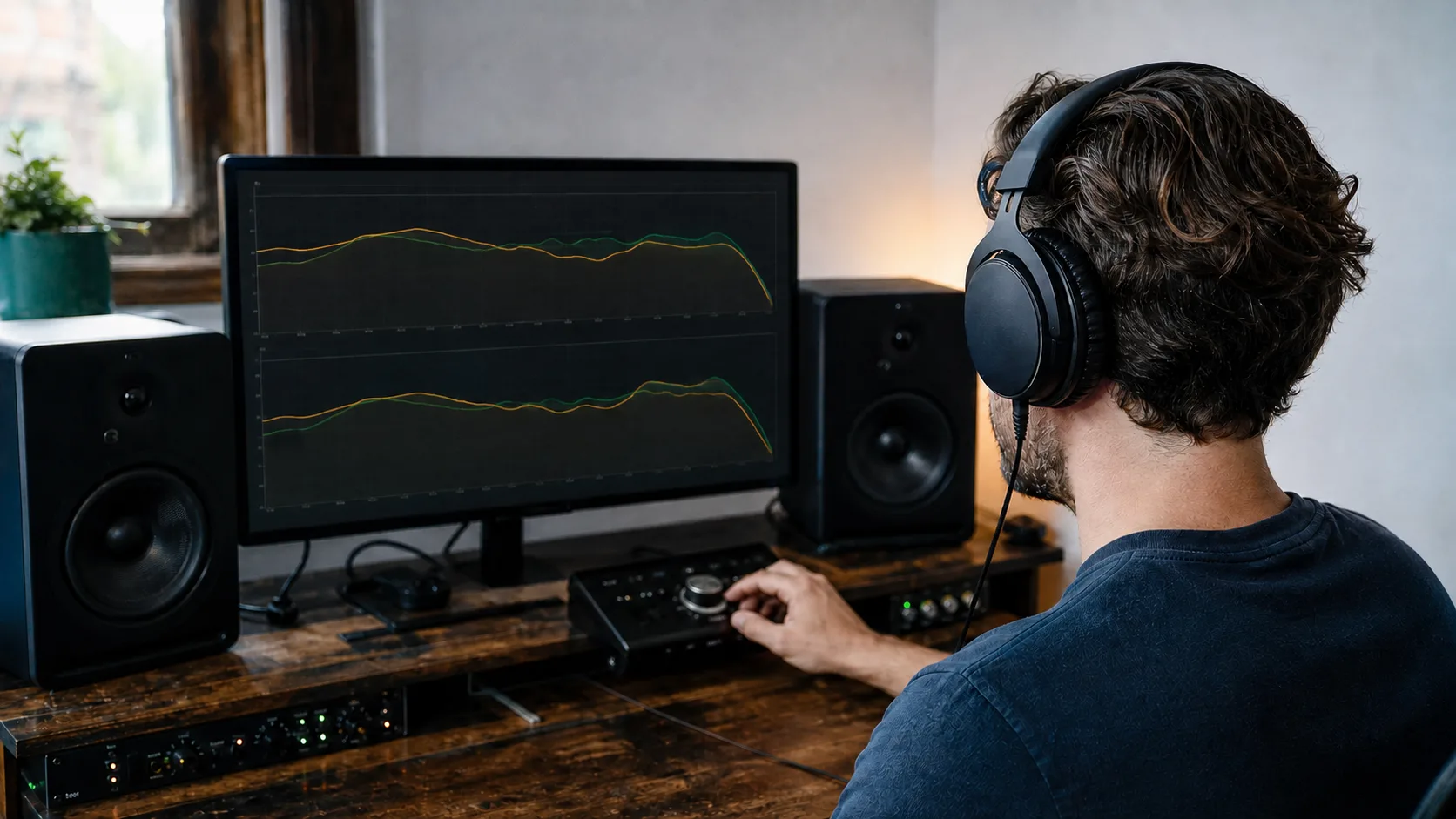
You can read that one headphone is brighter, darker, fuller, or leaner than another. The problem is that those words do not give you a fixed listening reference.
Virtual Headphones starts with a reference you already understand: the headphones currently on your head.
It compares the measured frequency-response profile of your headphones with the profile of a selected target, calculates the difference, and applies a controlled correction. You can then switch between the two states while the same audio continues from the same position.
The goal is not to create a perfect physical copy of another headphone. It is to let you hear the direction and approximate scale of the tonal change: more or less bass, a more forward vocal range, or a brighter or softer top end.

The browser tool begins with the headphones you are wearing, a target model, and a familiar local audio file.
The comparison begins with two measured profiles
Virtual Headphones uses processed public measurement profiles derived from the open-source AutoEq project. The public catalog is pinned to a specific AutoEq data snapshot so the models do not change unexpectedly between visits.
The process does not simply add the target headphone's EQ curve to the signal.
First, you select the exact headphones you are physically wearing. Their measured profile becomes the starting point. Virtual Headphones then subtracts that profile from the selected target profile. The remaining difference describes the tonal change that needs to be approximated.
Raw measurement differences are not applied without limits. Measurement rigs can differ, and the extreme bass and upper treble are more sensitive to fit and measurement position. A large narrow correction can also sound unnatural or remove useful headroom.
The browser engine therefore:
- removes the average offset from 125 Hz to 5 kHz so a simple level change does not dominate the comparison;
- reduces less reliable changes in the extreme bass and above 10 kHz;
- limits large boosts and deep narrow corrections;
- adds safety attenuation according to the largest positive filter gain; and
- moves between filter settings with short ramps to reduce clicks during A/B switching.
This is deliberately conservative. The purpose is a stable listening comparison, not the most dramatic possible difference.
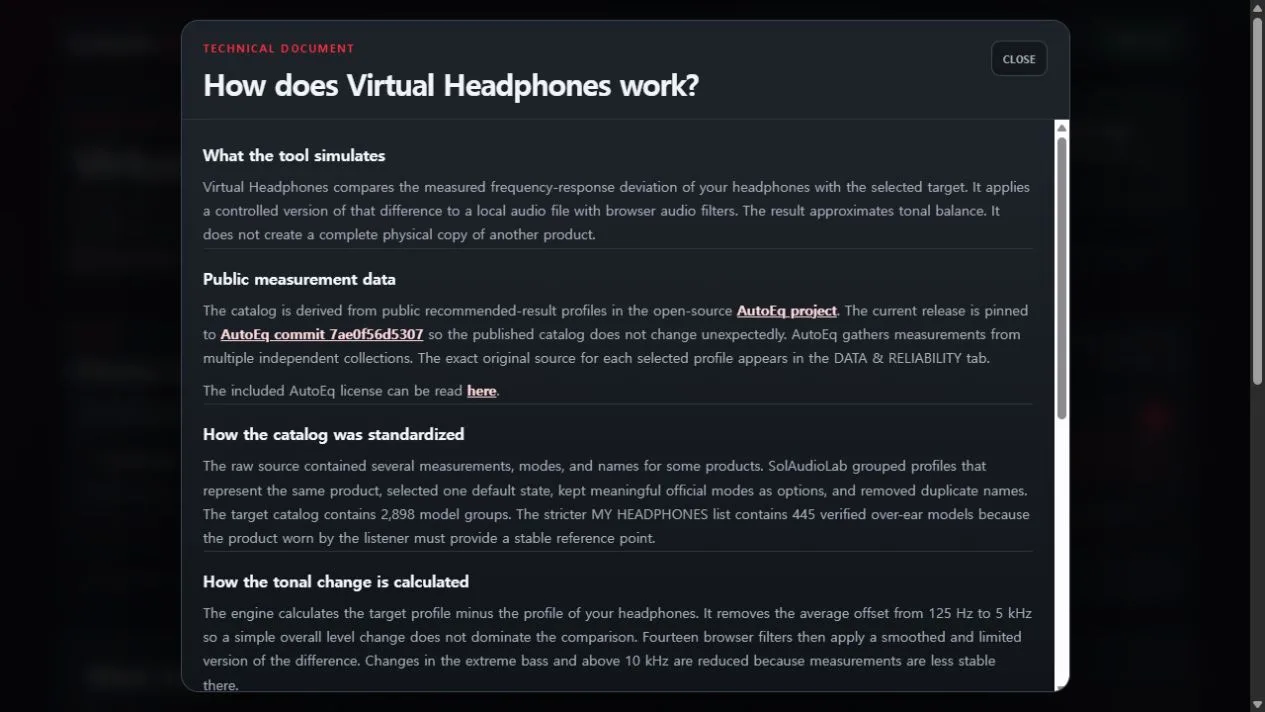
The built-in technical document explains the measurement source, catalog standardization, filter calculation, headroom, and practical limits.
How the browser version processes audio
The Virtual Headphones web tool asks for three things: the headphones you are wearing, a target model, and a familiar audio file.
The selected file is assigned to a temporary browser address. It is not uploaded to or stored by SolAudioLab. Closing the page removes the file from the tool.
Playback enters a Web Audio API processing chain with 14 peaking filters between 31.5 Hz and 12.5 kHz. Each filter receives a controlled part of the calculated response difference. The browser's BiquadFilterNode provides the frequency, Q, and gain controls used for this kind of equalization; its behavior is documented in MDN's Web Audio reference.
Both listening modes share the same file, playback position, loop, and level-management path. That matters because restarting the song or changing volume would introduce a second variable. Here, the tonal correction is the main thing that changes.
The web version currently offers 2,898 target headphone and earphone groups. A stricter list of 445 verified over-ear models is available for MY HEADPHONES because the product you are actually wearing must provide a reasonably stable starting point.
Use the web version when you want to explore a broad catalog without installing software or opening a DAW.
The plug-in brings the comparison into the mix
The Virtual Headphones plug-in brings the same comparison idea into a DAW monitoring chain.
Place it on the monitoring bus or at the end of the master chain, select the headphones you are wearing, and choose a target or FLAT correction. The LISTEN control switches between the current-headphone reference and the processed target without moving to another window or changing the mix.
The response display shows three useful pieces of information: the source headphone profile, the target profile, and the correction filters being applied. This keeps the process inspectable instead of hiding it behind a model name.
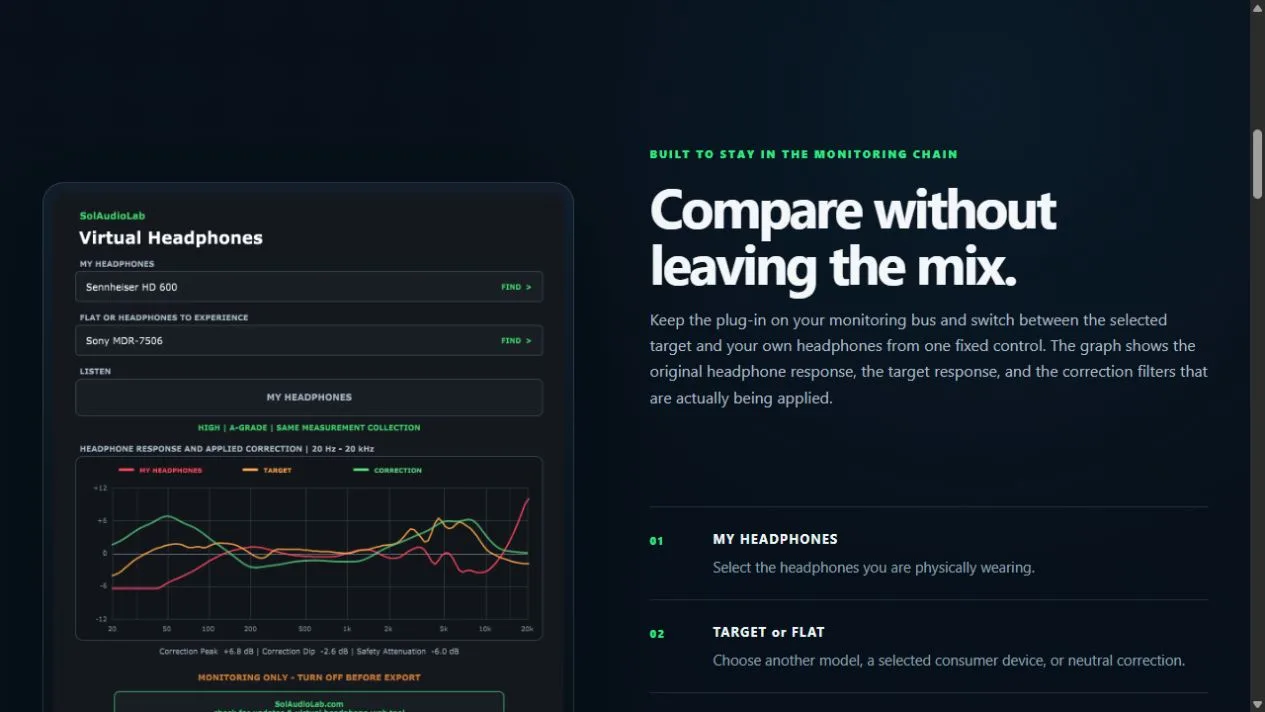
The plug-in keeps the comparison inside the DAW monitoring path and shows the source, target, and applied correction.
Virtual Headphones Beta 0.5 currently includes 330 MY HEADPHONES models, 408 target models, and 93 Consumer Check targets. Consumer Check adds selected everyday listening references for questions such as whether the vocal remains clear, the low end still travels, or the top end becomes harsh.
The plug-in is available as Windows VST3, macOS VST3, and Audio Unit for Logic Pro, GarageBand, and other compatible hosts. VST3 is Steinberg's interface for integrating audio effects with a DAW, while Audio Unit is Apple's plug-in architecture for macOS hosts. The formats are documented by the Steinberg VST3 Developer Portal and Apple's AUAudioUnit reference.
The macOS builds are Universal binaries for Apple Silicon and Intel Macs, signed with a Developer ID certificate and notarized by Apple. Audio and project data remain on the user's computer.

The target picker provides headphone references, FLAT correction, and selected Consumer Check listening references.
What Virtual Headphones does not reproduce
Virtual Headphones is a tonal comparison tool. It is not an HRTF spatializer that places virtual speakers around the listener, and it does not claim to reproduce the complete physical experience of another product.
Frequency response alone cannot reproduce:
- comfort, weight, or clamp force;
- soundstage and spatial presentation;
- isolation and noise cancelling;
- distortion and transient behavior;
- unit variation or worn ear pads; or
- the effects of ear shape, seal, and fit.
The result should be treated as a practical reference before a real listening test, not as a replacement for wearing the target headphone.
A simple way to use it
Select the exact model you are wearing and use music you know well. Keep the playback level unchanged and switch over a short repeated section.
Instead of asking whether the target sounds generally better, listen for one decision at a time:
- Does the bass become heavier or thinner?
- Does the vocal move forward or backward?
- Does the top end reveal harshness that felt safe before?
- Does a mix problem remain audible through a different tonal balance?
Use the web tool for broad exploration. Use the plug-in when you want the comparison available repeatedly while mixing.
The plug-in is for monitoring only. Disable it manually before the final Export or Bounce. It attempts to bypass processing during offline export, but DAWs do not all report that state in the same way.
Virtual Headphones makes a modest promise: one familiar pair of headphones can place more listening references within reach.